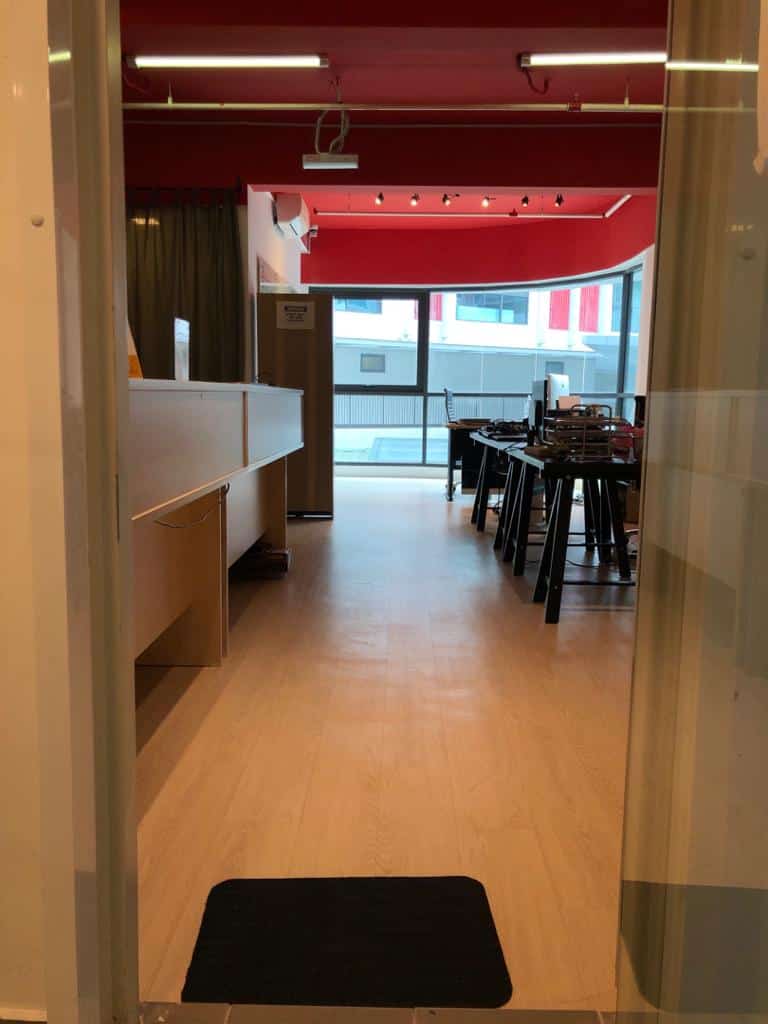
Essential device care guide for Malaysian students. Monthly maintenance checklist, damage prevention tips, backup strategies, and student-friendly repair pricing near major universities.
Why Students Need Reliable Devices
For Malaysian students in 2026, a reliable laptop or tablet isn't just convenient - it's essential. Online learning platforms, assignment submissions, research, and group projects all depend on functioning devices. A broken laptop during exam week can derail your academic performance and cause unnecessary stress.
At TechFix Malaysia, we see hundreds of student devices every semester, often with preventable issues that could have been avoided with basic maintenance. This guide helps students protect their investment and avoid repair costs.
The True Cost of Device Failure for Students
Academic impact:
- Missed assignment deadlines (late submission penalties)
- Inability to access online lectures and materials
- Lost research and project work (if no backup)
- Stress during critical exam periods
Financial impact:
- Emergency repairs: RM300-800 (often when funds are lowest)
- Replacement device: RM2,000-5,000
- Lost productivity during repair turnaround (3-7 days)
- Data recovery costs if drive fails: RM500-1,500
Real student scenario: Final year student's MacBook screen cracked 2 weeks before thesis submission. Emergency screen replacement (RM950) + express service fee (RM150) = RM1,100. Could have been prevented with protective case (RM80) and careful handling.
Device Setup Before Semester Starts
Essential Software Installation
Productivity tools:
- Microsoft Office 365 (free for most Malaysian universities - check with IT department)
- Google Drive Desktop (automatic backup to cloud)
- Adobe Acrobat Reader (for reading academic PDFs)
- Grammarly or LanguageTool (writing assistance)
- Notion or OneNote (note-taking and organization)
Security essentials:
- Antivirus software (Windows Defender sufficient for most, Malwarebytes for extra protection)
- VPN for secure university WiFi access (ProtonVPN free tier or NordVPN)
- Password manager (Bitwarden free, LastPass, 1Password student discount)
Student-specific apps:
- Zotero or Mendeley (research citation management)
- Mathway or Symbolab (STEM students)
- Grammarly (essay writing)
- Quizlet (study flashcards)
Performance optimization:
- Uninstall bloatware (pre-installed trial software)
- Disable unnecessary startup programs
- Set up automatic Windows/macOS updates (avoid mid-semester surprises)
- Create restore point BEFORE installing new software
Backup Strategy Setup (CRITICAL)
The 3-2-1 backup rule for students:
3 copies of important files 2 different storage types (local + cloud) 1 offsite backup (cloud storage)
Recommended student backup setup:
Primary storage: Laptop internal SSD/HDD Backup 1: External hard drive (1TB portable HDD: RM150-220) Backup 2: Cloud storage (Google Drive 15GB free, OneDrive 5GB free, or university-provided cloud)
What to backup weekly:
- All assignment files and project documents
- Research papers and downloaded academic PDFs
- Presentation slides and spreadsheets
- Important emails (export critical communications)
- Photos of handwritten notes (use Microsoft Office Lens)
Backup schedule:
- Daily: Auto-sync active assignment folders to cloud (Google Drive Desktop or OneDrive)
- Weekly: Manual backup to external drive (Sunday evening before new week starts)
- Before major deadlines: Complete system backup (including software settings)
Free backup tools:
- Windows: File History (built-in) or Macrium Reflect Free
- macOS: Time Machine (built-in, requires external drive)
- Cloud: Google Drive, OneDrive, Dropbox (15GB free)
Monthly Maintenance Checklist (30 Minutes)
Week 1: Physical Cleaning
Exterior cleaning:
- Wipe keyboard with slightly damp microfiber cloth (isopropyl alcohol 70% for disinfection)
- Clean screen with screen-specific cleaner (avoid Windex/harsh chemicals)
- Remove dust from ports with soft brush or compressed air
- Clean trackpad with microfiber cloth
- Wipe laptop exterior and bottom panel
Storage cleanup:
- Delete downloaded files you no longer need (Downloads folder fills fast)
- Empty Recycle Bin/Trash
- Clear browser cache and cookies (frees 2-5GB typically)
- Uninstall apps you haven't used in 2 months
- Move old semester files to external drive or archive folder
Week 2: Software Maintenance
Update everything:
- Windows Update or macOS Software Update
- Browser updates (Chrome, Firefox, Edge)
- Essential apps (Office, Adobe Reader, etc.)
- Antivirus definitions
- Graphics drivers (especially important for engineering/design students)
Security check:
- Run full antivirus scan (Saturday when laptop is idle)
- Review installed programs for anything unfamiliar
- Check browser extensions for suspicious add-ons
- Change important passwords (university portal, email, banking)
Week 3: Performance Check
Monitor health indicators:
- Battery health (Windows Battery Report or coconutBattery for Mac)
- Storage space (minimum 15% free space for optimal performance)
- RAM usage (Task Manager or Activity Monitor - close unused apps)
- Startup programs (disable non-essential apps from auto-starting)
Performance tests:
- Boot time (should be <1 minute on SSD, <2 minutes on HDD)
- Application launch speed (Word, browser, etc. should open in <5 seconds)
- File transfer speed to external drive (check for slowdowns)
Week 4: Backup & Sync Verification
Backup verification:
- Confirm automatic cloud sync is working (check last sync timestamp)
- Perform manual backup to external drive
- Test file restoration from backup (try opening a file from backup location)
- Verify critical assignment files exist in all 3 backup locations
Organization:
- Organize files into semester/subject folders
- Rename files with clear naming convention (Subject_Assignment_Date.docx)
- Archive completed assignments to separate folder
- Update your assignment tracker spreadsheet
Preventing Accidental Damage
Laptop Transportation Safety
Investment in protection (worth every ringgit):
Laptop sleeve or hard case: RM40-150
- Protects against bumps and pressure in backpack
- Prevents screen cracking from book corners pressing against lid
- Water-resistant options protect against rain
Padded backpack with laptop compartment: RM80-250
- Dedicated suspended compartment keeps laptop away from bottom (protection from drops)
- Side compression straps prevent laptop shifting during movement
- Quick-access pocket for charger and accessories
Screen protector: RM20-50 (optional but helps prevent scratches)
Carrying best practices:
- NEVER place laptop in backpack with heavy textbooks pressing against it
- Always place laptop in dedicated compartment (not main compartment with books)
- Keep laptop away from water bottles (use separate compartment)
- Don't overstuff backpack (causes pressure on laptop)
- Carry backpack by both straps (single-strap carry causes swinging/impacts)
Classroom and Study Area Safety
Common student damage scenarios we repair:
Coffee/water spills (25% of student repairs):
- Prevention: Keep drinks away from laptop (at least arm's length)
- If spill occurs: Immediately power off, flip laptop upside-down, bring to TechFix within 24 hours (liquid damage worsens over time)
- Cost to repair: RM300-800 depending on component damage
Charger port damage (20% of student repairs):
- Prevention: Don't wrap cable tightly around charger brick (damages internal wires)
- Prevention: Gentle insertion/removal (don't force or yank)
- Prevention: Avoid tripping over cable (creates sudden pull on port)
- Cost to repair: RM150-280
Screen cracks from lid pressure (15% of student repairs):
- Prevention: Never place heavy items on closed laptop
- Prevention: Don't grab laptop by screen corner when opening
- Prevention: Open lid from center, not corner
- Cost to repair: RM400-950 depending on model
Handling During Group Work
LAN party / group project scenarios:
- Use surge protector power strip (protects 4-6 laptops from power surge: RM30-60)
- Keep food/drinks on separate table from electronics
- Don't let others handle your laptop roughly
- Back up work before collaborative sessions (in case of accidents)
Laptop Care in Malaysian Climate
Heat Management
Malaysia's challenge: 28-35°C ambient temperature + high humidity
Cooling strategies for students:
Ventilation best practices:
- Never use laptop on bed/cushions (blocks bottom air vents)
- Hard flat surface only (desk, laptop stand, cooling pad)
- Keep laptop elevated (laptop stand or books under back edge for 15-20° angle)
- Don't block side/back vents with papers or books
Cooling pad investment (recommended for engineering/design students):
- Budget cooling pad: RM40-80 (reduces temperature 5-10°C)
- Performance difference: Less thermal throttling during rendering/compiling tasks
Signs of overheating:
- Laptop unusually hot to touch
- Fan constantly running at high speed
- Unexpected shutdowns during intensive tasks
- Performance slowdowns during normal use
If experiencing overheating: Bring to TechFix for cleaning service (RM80-120 includes internal dust cleaning, fan cleaning, thermal paste check). Required every 12-18 months for Malaysian climate.
Humidity Protection
Preventing moisture damage:
- Store laptop in air-conditioned room when possible (dorm rooms with AC ideal)
- Use silica gel packets in laptop bag during rainy season (RM5 for pack of 10)
- Don't leave laptop in car (heat + humidity combo is worst-case scenario)
- Wipe condensation from laptop if brought from hot outdoors to cold AC room (let laptop acclimate 10 minutes before opening)
Rain Protection
Motorcycle/bicycle students:
- Waterproof laptop sleeve or dry bag (RM40-80)
- Waterproof backpack or backpack rain cover (RM25-60)
- Never assume "water-resistant" backpack is sufficient for heavy rain
- If laptop gets wet: Power off immediately, bring to TechFix same day (liquid damage repair: RM200-600 depending on severity)
Quick Fixes for Common Student Problems
Problem: Laptop Running Slow
Before spending money on repair, try:
- Close unused programs: Task Manager (Ctrl+Shift+Esc) → End unnecessary tasks
- Disable startup programs: Task Manager → Startup tab → Disable non-essential apps
- Clear temp files: Disk Cleanup or CCleaner (frees 5-10GB)
- Check for malware: Full antivirus scan
- Restart laptop: Simple but often fixes issues
If still slow after above steps: Likely need SSD upgrade (RM200-350 including installation) or RAM upgrade (RM150-280).
Problem: Battery Draining Fast
Quick fixes:
- Reduce screen brightness: 50% brightness uses 40% less battery than 100%
- Close background apps: Check Task Manager for battery-draining apps
- Use battery saver mode: Windows Battery Saver or macOS Low Power Mode
- Disable WiFi/Bluetooth when not needed
Battery health check:
- Windows: Command Prompt → powercfg /batteryreport → Open HTML report
- macOS: Hold Option key → Click battery icon → Check "Condition"
If battery health <70%: Replacement recommended (RM200-450 depending on model). Student discount available at TechFix.
Problem: WiFi Keeps Disconnecting
Troubleshooting steps:
- Forget and reconnect to WiFi network
- Update WiFi driver: Device Manager → Network adapters → Update driver
- Disable WiFi power saving: Device Manager → Network adapter → Power Management tab → Uncheck "Allow computer to turn off this device"
- Check router: Test other devices on same WiFi (if all devices affected, router issue not laptop)
If issue persists: WiFi card replacement (RM120-200) or USB WiFi adapter (temporary fix: RM25-50).
Problem: Running Out of Storage Space
Free up space without deleting files:
- Move old assignments to external drive (RM150-220 for 1TB portable HDD)
- Use cloud storage: Google Drive 15GB free, OneDrive 5GB free
- Uninstall large games/unused apps: Check Settings → Apps → Sort by size
- Compress old files: Right-click folder → Send to → Compressed (zipped) folder
Long-term solution: SSD upgrade (512GB→1TB: RM250-350 with data migration).
Student Warranty & Protection Plans
TechFix Student Benefits
Student ID discount: 10% off all labor costs (show valid student ID)
Payment plans: Repairs over RM200 can be split into 2 installments (no interest)
Express student service: Priority repair during exam weeks (additional RM50 express fee)
Group discounts: 3+ students from same university get additional 5% off (stackable with student discount)
Extended Warranty Worth It?
Manufacturer warranties typically cover:
- Manufacturing defects only (1-2 years standard)
- Does NOT cover accidental damage (drops, spills, cracks)
Extended warranty pros (AppleCare+, Dell Premium Support, etc.):
- Covers accidental damage (2 claims per year typically)
- On-site repair or fast replacement
- International coverage (useful if studying abroad)
Extended warranty cons:
- Expensive (RM800-1,500 for 3 years)
- Claim limits and deductibles (RM300-500 per claim)
- Only worth it for expensive devices (RM4,000+)
For budget laptops (RM2,000-3,000): Extended warranty not cost-effective. Better to:
- Buy protective case and be careful (RM80-150)
- Save RM200-300 as "repair emergency fund"
- Use TechFix for repairs (affordable student pricing, 90-day warranty)
TechFix Locations Near Universities
Sunway Geo Avenue (Walking Distance)
Nearby universities:
- Sunway University (5 min walk)
- Monash University Malaysia (10 min drive)
- Taylor's University Lakeside Campus (12 min drive)
Address: G-06-28, Level 6, Block G, Sunway Geo Avenue, Jalan Lagoon Selatan, Bandar Sunway
Hours: Mon-Sat 11AM-8PM, Sun 11AM-6PM
Popular student repairs: Screen replacement, battery replacement, SSD upgrade, thermal paste service
Shah Alam (Near UiTM)
Nearby universities:
- UiTM Shah Alam (main campus)
- Universiti Selangor (UNISEL)
Service area: We offer pickup/delivery service for UiTM students (minimum RM300 repair). WhatsApp 017-355 5725 for details.
Cyberjaya CoPlace (MMU Students)
Nearby universities:
- Multimedia University (MMU) - 5 min drive
- Cyberjaya University College - 8 min drive
- Universiti Tenaga Nasional (UNITEN) Putrajaya - 15 min drive
Address: A-G-06, CoPlace 2, Jalan Usahawan, Cyber 5, 63000 Cyberjaya
Hours: Mon-Sat 10AM-7PM
Student specials: SSD upgrade + Windows reinstall bundle (RM220 for 512GB SSD), RAM upgrade specials during semester breaks
Kajang (Near UKM)
Nearby universities:
- Universiti Kebangsaan Malaysia (UKM)
Service: Free pickup from UKM campus for repairs over RM250. WhatsApp to arrange.
Student-Friendly Repair Pricing
Common Student Repairs
| Repair Type | Regular Price | Student Price | Turnaround |
|---|---|---|---|
| Laptop screen replacement | RM400-850 | RM360-765 | Same day |
| Battery replacement | RM200-450 | RM180-405 | Same day |
| SSD upgrade (512GB) | RM250 | RM225 | 2-4 hours |
| RAM upgrade (8GB→16GB) | RM180 | RM162 | 1 hour |
| Thermal paste cleaning | RM120 | RM108 | 2 hours |
| Keyboard replacement | RM150-300 | RM135-270 | 1-2 days |
| Charging port repair | RM180 | RM162 | Same day |
| Free diagnostic | Free | Free | 30-45 min |
Student discount: 10% off labor costs with valid student ID (matriculation card, student ID card)
Payment options:
- Cash
- Credit/debit card
- Online transfer
- 2-installment plan for repairs over RM200 (50% down, 50% on collection)
Semester Preparation Checklist
Before Semester Starts (1 Week Before)
- Back up all important files to external drive and cloud
- Update operating system and all essential software
- Run full antivirus scan
- Clean laptop physically (inside and outside)
- Check battery health (replace if <70%)
- Verify charger cable condition (replace if frayed)
- Organize files into new semester folders
- Test laptop performance (boot time, app loading)
- Buy protective accessories if needed (case, screen protector)
- Set up backup schedule (weekly automatic backup)
During Semester (Monthly)
- Follow monthly maintenance checklist (30 min/month)
- Back up assignment files weekly (Sunday evening routine)
- Check available storage space (minimum 20GB free)
- Monitor battery health monthly
- Clean keyboard and screen
- Update critical software
Before Exam Week (2 Weeks Before)
- CRITICAL: Full backup of all files (assignments, notes, projects)
- Verify backup can be restored (test opening files from backup)
- Clean temporary files (free up space)
- Check battery health (don't risk battery failure during exams)
- Test charger functionality
- Update all software (avoid updates during exam week)
- If any issues detected: Bring to TechFix immediately (don't wait until exam week)
End of Semester
- Back up all semester files to external drive
- Archive completed semester folder
- Uninstall unused software/apps
- Deep clean laptop (consider professional cleaning service: RM80-120)
- Check for any needed repairs during semester break
- Update OS during break (avoid mid-semester updates)
Frequently Asked Questions
Q: Should I shut down my laptop every day or just close the lid?
A: For daily use, sleep mode (close lid) is fine and faster. However, restart laptop at least once a week to clear memory and apply updates. Full shutdown recommended if not using laptop for 2+ days.
Q: Is it safe to use laptop while charging?
A: Yes, completely safe. Modern laptops bypass battery when fully charged and plugged in. For battery longevity, keep charge between 20-80% when possible (Windows Battery Limiter or macOS Optimized Battery Charging helps with this).
Q: My laptop fell but seems fine. Should I get it checked?
A: Yes, especially if it was a hard drop. Internal damage (loose connections, cracked solder joints, damaged hard drive) may not be immediately obvious but can cause failures weeks later. Free diagnostic at TechFix checks for hidden damage.
Q: Can I claim student discount for repairs outside semester?
A: Yes! Student discount available year-round, including semester breaks and holidays. Just show valid student ID.
Book Your Student Device Repair
Don't let device problems derail your academic success. TechFix Malaysia understands student budgets and timelines.
Visit us:
Sunway Geo Avenue - G-06-28, Level 6, Block G, Sunway Geo Avenue (5 min walk from Sunway University) Hours: Mon-Sat 11AM-8PM, Sun 11AM-6PM
Cyberjaya CoPlace - A-G-06, CoPlace 2, Jalan Usahawan, Cyber 5, 63000 Cyberjaya (5 min drive from MMU) Hours: Mon-Sat 10AM-7PM
WhatsApp: 017-355 5725 - Student express service available
Book free diagnostic | View student-friendly pricing | Backup guide
Free diagnostic. Student discounts. Payment plans available. Your success is our priority.